
How to Create an Account
To submit commitments or report on past pledges, you first need to register and create an account on the GDS Commitments Portal.
If you prefer, you can watch a YouTube video tutorial:
Step 1: Start Registration
- From the portal's homepage, click the Start Submitting Commitments button.
- On the sign-in screen, locate and click the Create an account link or button.
Step 2: Provide Account Details
You will be asked to fill out a standard registration form.
- e-mail: Enter a valid email address. This will be your login ID and will be used for verification.
- password: Create a secure password.
- first name: Enter your first name.
- Click Next to proceed to the next step.

Step 3: Set Organisation Details
After creating your basic user account, you must associate it with an organization. If your organization is not yet registered on the portal, you will create a new profile for it.
- Choose the option to Set details for new organisation.
- Name: Enter the official name of your organization.
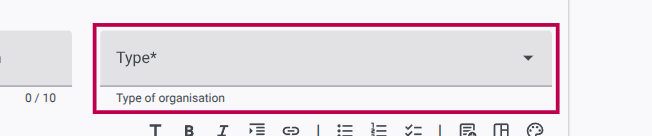
- Type: Select the category that best fits your organization (e.g., INGO, Government, etc.) from the dropdown menu.
- Description: Provide a brief description of your organization.
- Click Next.

Step 4: Verify Your Email
- Check the inbox of the email address you provided in Step 2.
- Look for an email from the GDS Portal containing a verification link.
- Click the link to verify your email address.
- Return to the portal wizard and click Next.
Step 5: Agree to Terms
- Read through the provided Terms of Service.
- Check the box to indicate your agreement.
- Click Next.
Step 6: Success
Your account and organization profile are now created!
Click the Access GDS commitments Portal link to enter your personalized dashboard ("My Space") where you can begin drafting new commitments.
