How to Access and Download Commitments
The GDS Commitments Portal allows users to explore, filter, and download commitments submitted across all Global Disability Summit (GDS) events, including GDS 2018, GDS 2022, and GDS 2025.
If you prefer, you can watch a YouTube video tutorial:
You can access this information directly from the portal without signing up or logging in.
TIP
The portal is fully public. No registration or credentials are required to view the datasets or download commitment data.
Step 1: Go to the GDS Commitment Portal
First, navigate to the GDS Commitment Portal. Locate and click on the Overview tab in the main navigation menu. This will take you to the dataset containing commitments submitted across all summit years.

Step 2: Explore and Filter Commitments
You can filter and refine the dataset using two main methods: interactive charts or the dataset table header filters.
Method A: Filter using Interactive Charts
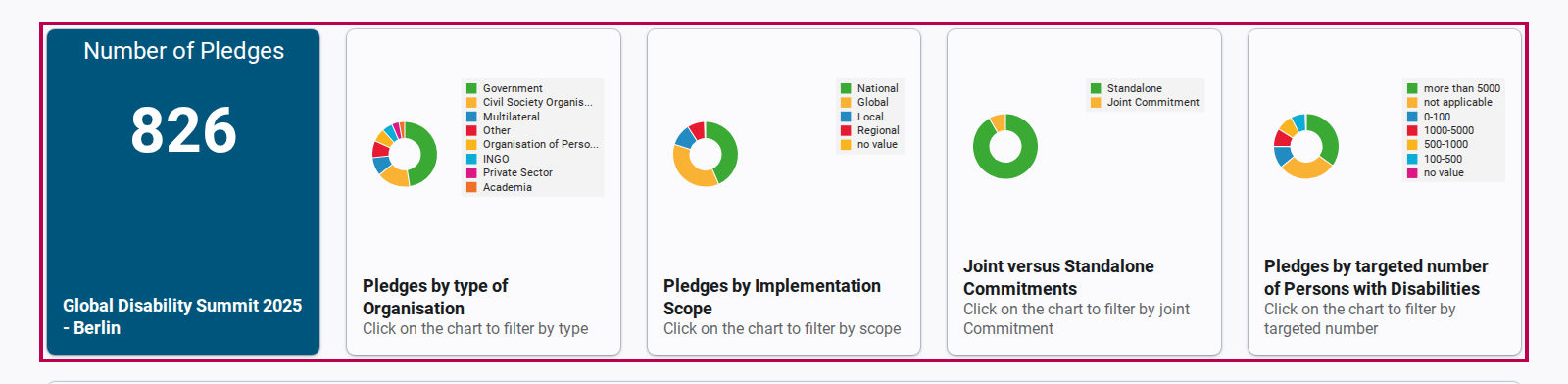
The charts displayed on the page are interactive. You can filter the commitments displayed in the table below the charts by simply clicking on any segment or category of the visualizations.
For example, you can filter commitments by clicking on segments representing:
- Organization type (e.g., INGOs, CSOs, Governments)
- Geographical scope (e.g., National, Regional, Global)
- Joint commitments (whether the commitment is shared or individual)
- Targeted number of Persons with Disabilities
Method B: Filter using the Dataset Table
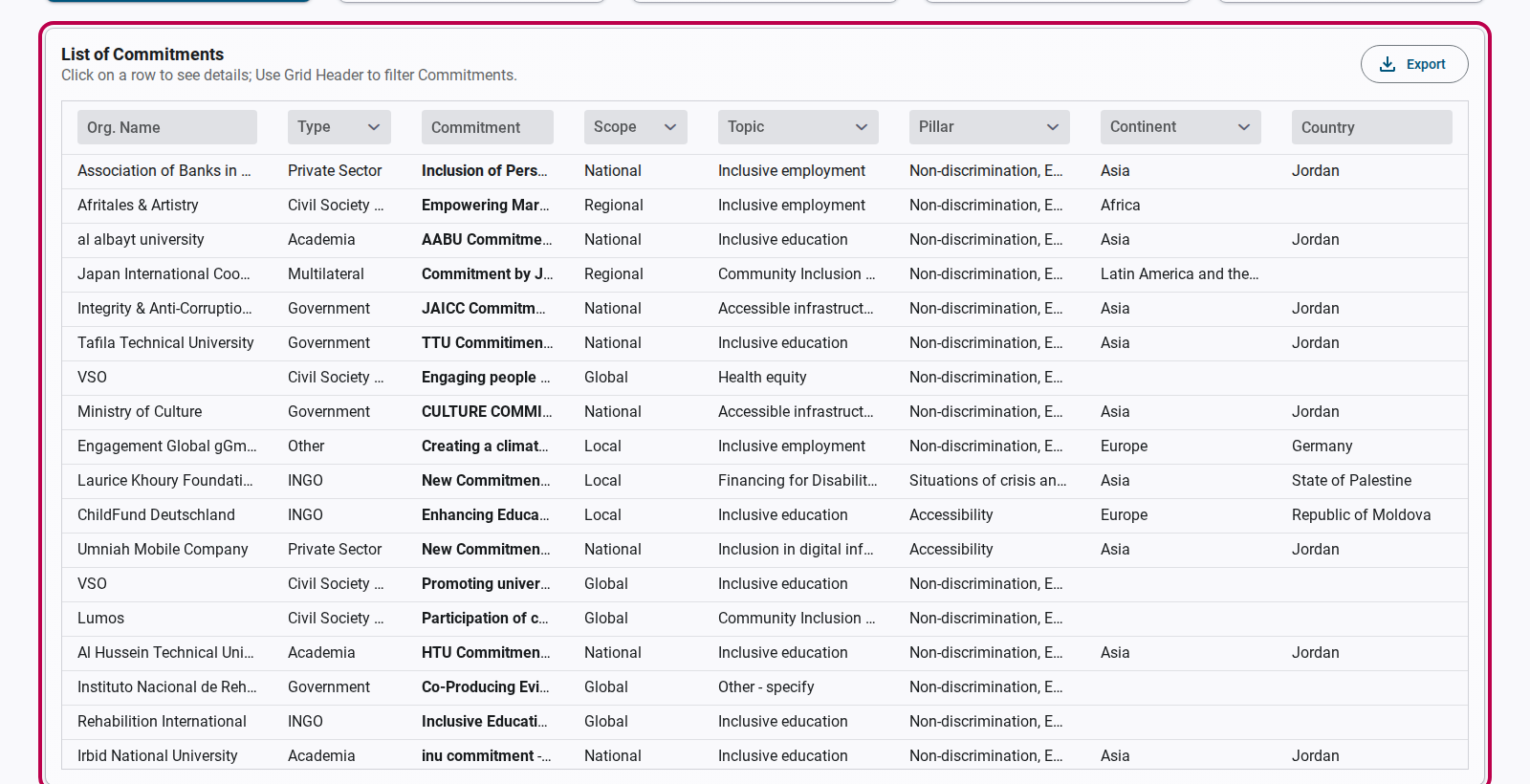
You can search and filter commitments directly within the dataset table. Use the Grid Header filters at the top of each column in the table to search by text, choose specific drop-down filter options, or sort columns.
Step 3: View Individual Commitment Details
To examine a specific commitment in detail, click on any row within the dataset table. This action will open a detailed view of the selected commitment, showing the full submission text, targets, timeline, and associated categories.
Step 4: Export Data
Once you have applied your desired filters, you can download the filtered list of commitments for offline analysis.
Click the Export button located at the top-right of the commitments table to download the filtered commitments into a standard CSV file.